Re-checked 8 Nov 2026: v4.0.03 is still the latest release on the official GitHub (released 19 Oct 2026) — no newer verified build.
Free • Latest version • Android 5.0+
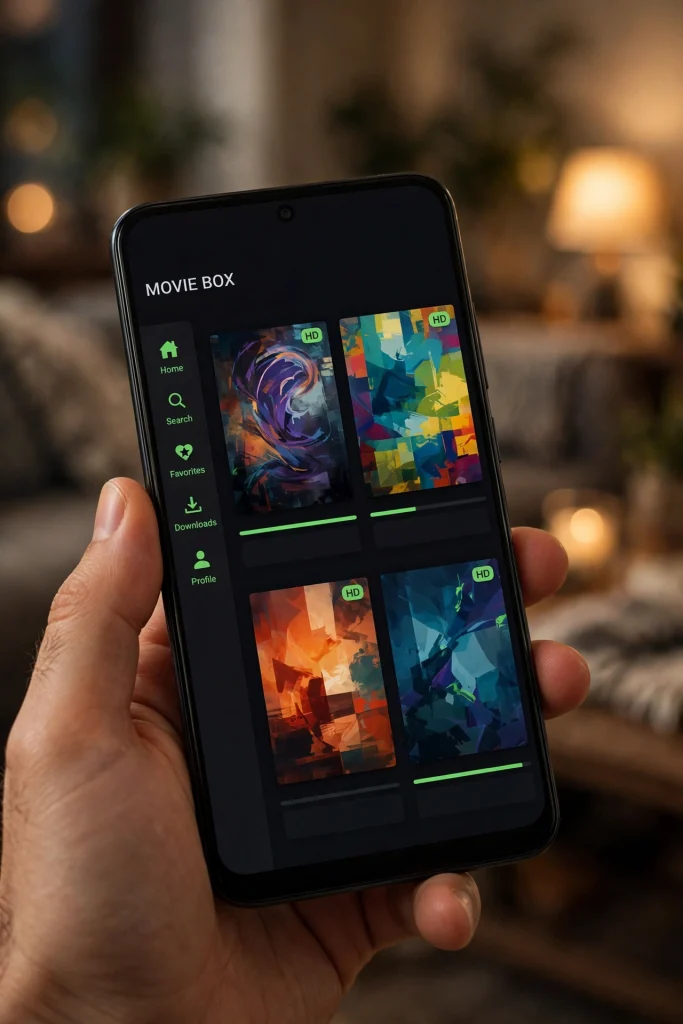
The latest MovieBox build is easy to claim and hard to prove. Many download pages call their file the latest version, even when the build string, the size, or the date does not match. This guide sticks to what was verified on October 17, 2026: the exact build strings, the file sizes, and the steps that update the app without wiping your downloads. Where facts run out, this page says so instead of guessing.
There is no single official changelog for these builds. No page on this site invents one. What you get below is the verified build list, how to check the build on your own phone, and how to tell a mismatched file from the real thing.
Latest verified builds
The current v4.0.03 family has two builds: the standard phone build, and the TV MOD build, a modified build for TV-style use labelled “Unlocked Premium”. Both were checked on October 17, 2026.
| Build | Size and details | Verified |
|---|---|---|
| Standard v4.0.03.0922.02 | About 62 MB, Android 5.0 and up | October 17, 2026 |
| TV MOD v4.0.03.0930.05 | About 90.48 MB, built October 13, 2026, labelled “Unlocked Premium” | October 17, 2026 |
| Previous MOD v4.0.02.0903.02 | Released September 22, 2026, replaced by the build above | October 17, 2026 |
If a file you downloaded shows a different build string or a very different size, treat it as a different file, not as the build in this table. File names can be edited by anyone, so the build string inside the app matters more than the name of the file.
What changed in the latest build
No confirmed changelog exists for either build. They are known by build strings, sizes, and dates, not by a published list of changes. Any site printing a dramatic feature list for these exact builds is guessing, and this site will not copy those guesses.
New builds in this family generally touch playback, stability, and compatibility with newer Android versions, but that is a general pattern, not a confirmed fact about these two builds. The practical check is to install the verified build, confirm the build string, and see whether your earlier problems are gone.
Note the naming trap: the family name is v4.0.03, but the full build string is longer, for example v4.0.03.0922.02. Two files can both say v4.0.03 and still be different builds, so always compare the full string.
How to check the build on your phone
Checking takes under a minute.
- Open Settings, then Apps, then find MovieBox in the list.
- Open the app info screen. The version or build string is usually shown near the bottom of that screen.
- Compare the full string with the table above. If it matches v4.0.03.0922.02, you have the verified standard build.
- Some phones show the version inside the app instead. Open the app, look in Settings or About, and compare the same string.
A string that matches nothing in the table means a different, uncovered build.
How to update without losing downloads
Updating means installing the new build over the old one. Do not uninstall first. Uninstalling removes the app storage, and downloads kept inside the app can go with it.
- Open the app and make a note of what you have downloaded, so you can check it afterwards.
- Get the verified build from our download page.
- Open the downloaded APK file and allow the install when your phone asks. Your phone may ask you to allow installs from the browser once.
- Open the app, check the build string using the steps above, and confirm your downloads are still listed.
- If the app acts up after updating, clear only the cache (Settings, Apps, MovieBox, Storage, Clear cache), not data, which can remove app-stored downloads and settings.
TV MOD users follow the same rule: install over the old MOD build. Mixing a standard build with a MOD build causes signature conflicts.
When the update fails
The most common failure is “App not installed.” It usually means the new file was signed differently, the download is corrupt, storage is full, or installs from that source are blocked.
Fix it in this order: check free storage, download the file again, allow installs from the source your phone names, and if the error repeats, check whether you are mixing a standard build with a MOD build. The troubleshooting guide covers these errors step by step.
If the new build will not run on your phone at all, an older build may suit very old devices. The old version guide explains the downgrade trade offs, including that downgrading usually means uninstalling first, which removes app-stored downloads.
Do not keep installing random builds from search results until one works. Each install from an unknown source adds risk, and a build that installs is not the same as a build that is verified.
How to spot a mismatched file
- Size: the standard build is about 62 MB. A file far from that size is a different file.
- Build string check: v5.x does not exist. Any file that claims to be v5 is mislabelled, whatever else the page says.
- Date: pages that say “updated 3 minutes ago” on every visit use an automatic label, not a real date.
- Source: if two pages give the same build string with different sizes, at least one is wrong. Trust the string on your phone, not the headline.
At update time: check the full build string, install over the old app, and confirm your downloads survived. That beats chasing every “latest version” headline.
If you would rather watch in a browser without installing the app, see how to watch MovieBox online.
Standard vs TV MOD — which build fits you?
Pick by the screen you watch on, not by the word “latest”:
| Standard | TV MOD | |
|---|---|---|
| Best for | Phones and tablets | TV-style viewing |
| Build string | v4.0.03.0922.02 | v4.0.03.0930.05 |
| Size | About 62 MB | About 90.48 MB |
| Label | Standard | “Unlocked Premium” |
| Needs | Android 5.0 and up | A TV-style setup |
The TV MOD build is the one labelled ‘Unlocked Premium’ — if that is what you are after, our premium unlock guide explains what it does and does not do.
If you watch on your phone, the standard build is the one. The TV MOD build is only worth it if you watch on a TV setup — installing it on a phone gains you nothing and mixing the two builds causes the signature conflicts explained below.
Before you update: 2-minute checklist
- Note what you have downloaded, so you can check it afterwards.
- Check the build string on your phone against the table above, so you know what you are replacing.
- Keep comfortably more than 62 MB free — the file alone is about 62 MB, and the install needs breathing room.
- Download over Wi-Fi where possible, so a mobile-data cut does not leave you with a half-downloaded file.
Frequently asked questions
What is the latest MovieBox APK version?
The verified standard build is v4.0.03.0922.02, about 62 MB, checked October 17, 2026. The current TV MOD build is v4.0.03.0930.05, about 90.48 MB.
Do I need to uninstall the old version before updating?
No. Install the new build over the old one so downloads and settings survive. Uninstall first only when downgrading or fixing a signature error.
Will updating delete my downloads?
It should not, if you install over the old app. Uninstalling can remove files the app stores in its own storage, so check your downloads after any reinstall.
Why do other sites show different sizes for the same version?
They mix builds, repacks, and outdated pages. Compare the full build string and the size together, and check the string on your phone after install.
Is there a MovieBox v5?
No. No v5.x build exists. Treat any v5 claim as a mislabelled or fake file.
How much free space do I need to update?
The standard file is about 62 MB, so keep comfortably more than that free before you start. The install itself needs room beyond the download.
Can I go back to the old build after updating?
Yes, but downgrading usually means uninstalling first, which removes app-stored downloads. The old version guide on this site explains the trade-offs before you decide.