No, there is no MovieBox app for Xbox — not on Xbox One, and not on Series X or S. Xbox runs Microsoft’s own system, not Android, so no APK can be installed and there is no MovieBox listing in the Microsoft Store. A site offering a “MovieBox for Xbox download” is not giving you a real Xbox app. Your Xbox can still put MovieBox on your TV, though: through the Edge browser already on the console, or by mirroring your phone screen. This guide covers both, including the limits other guides leave out.
Free • Latest version • Android 5.0+
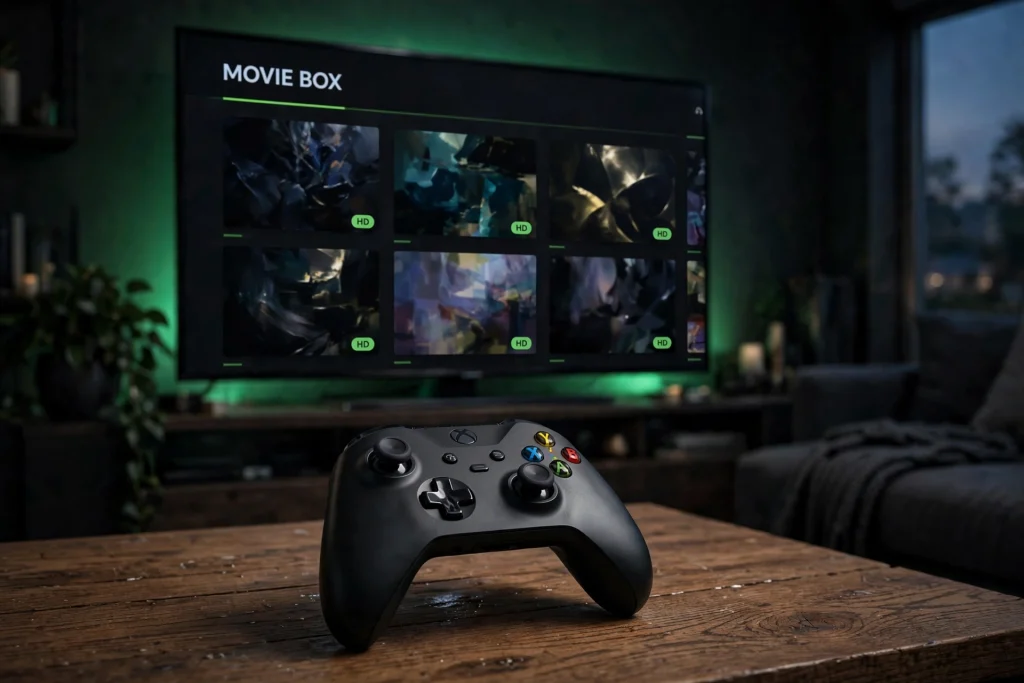
Can You Install MovieBox on Xbox?
Short answer: no. Xbox does not sideload Android apps, and Microsoft allows no third-party app stores on the console. There is no official MovieBox app for Xbox, and no APK or installer changes that. The two methods below install nothing on the console — they use the Xbox browser or the MovieBox app already on your phone. Anything claiming otherwise is fake — what it installs is usually adware or malware.
Method 1: Watch in the Microsoft Edge Browser
Every Xbox has Microsoft Edge built in, and Edge can open the MovieBox web version — the simplest method, needing nothing but the console and Wi-Fi.
- From the Xbox home screen, open My games and apps, then Apps, and launch Microsoft Edge.
- Open the MovieBox web version — see our watch MovieBox online guide.
- Pick a movie or show and press play, then use the fullscreen button for a proper TV picture.
- Navigate with the controller — left stick moves the cursor, A clicks, B goes back. It is slower than a mouse, so use the search box, not long scrolling lists.
Edge on Xbox has real limits. There is no background play: switch apps and playback stops. Some web players are fussy in a console browser, so a video that plays fine on your phone may stutter here. And you cannot download for offline watching in the browser.
Method 2: Mirror MovieBox from Your Phone
This method puts the full MovieBox app interface on your TV. Your phone does the playing, and the Xbox shows your phone screen.
- Install MovieBox on your Android phone first. The latest verified build is v4.0.03.0922.02 (about 62 MB) — see our latest verified build page.
- On your Xbox, install the free Wireless Display app from the Microsoft Store — it turns your Xbox into a screen-receiving display.
- Connect your phone and Xbox to the same Wi-Fi network — a phone on mobile data, and the Xbox will not appear.
- Open the Wireless Display app on the Xbox and leave it open.
- On your phone, open Settings, tap Cast, Smart View or Screen Mirroring, and pick your Xbox.
- Open MovieBox on your phone, start a movie or show, and turn the phone sideways for a full-screen picture.
Mirroring has its own limits. Picture quality depends on Wi-Fi — 5 GHz beats 2.4 GHz. Your phone screen has to stay on, so keep a charger nearby, and the Xbox controller cannot control playback while mirroring; your phone is the remote. If you want a stick that runs the app directly, our MovieBox for Firestick guide covers that.
Which Method Should You Pick?
Use Edge to watch something quickly when your phone is busy. Use mirroring for the real MovieBox app — its search, lists and player — on the big screen. Most regular watchers end up on mirroring, because browsing with a controller gets old fast. The same idea works elsewhere: our MovieBox on Roku guide uses the same mirroring approach, since Roku also has no native MovieBox app.
Troubleshooting
Edge page will not load: update the console (Settings, then System, then Updates), clear Edge’s browsing data, and restart the console.
Xbox does not show up when casting: both devices must be on the same Wi-Fi network. Restart the Wireless Display app, and check your phone’s cast feature is on — some phones call it “Smart View”.
Video stutters or looks blurry: move closer to the router, use the 5 GHz network, and close other apps on your phone.
No sound on the TV: check the TV is not muted, raise the volume on both devices, and restart the Wireless Display app. If sound works in the dashboard but not while mirroring, restart the phone.
Watch Out for Fake “MovieBox for Xbox” Downloads
If a page offers you a ‘MovieBox for Xbox’ file, ask yourself what it could possibly be. Xbox cannot run APK or EXE files, so the download is not an Xbox app — it is something else wearing the name. Usually adware, sometimes worse. The page will still ask for your Microsoft password or a payment. Close the tab. The two methods above cost nothing and ask for nothing.
So that is Xbox sorted, as much as it can be. Edge for tonight, mirroring for the week, Firestick if you watch every day. None of it needs a download, a payment, or a Microsoft account password typed into a strange site — and anyone promising you an Xbox MovieBox app is selling the one thing that does not exist.
Frequently Asked Questions
Is there a MovieBox app for Xbox?
No. There is no native app in the Microsoft Store, and no APK can be installed on an Xbox. The working options are Edge and phone mirroring.
Can I install the MovieBox APK on Xbox One or Series X/S?
No. Xbox consoles do not run Android apps or APK files. Any page offering an Xbox APK is a fake.
Does the Edge browser method work on Xbox One?
Yes. Edge is on Xbox One as well as Series X and S, and the steps are the same.
Can I control playback with the Xbox controller?
In Edge, yes — the controller moves the cursor and clicks. While mirroring, no — your phone is the remote.